Forget everything you know about traditional CRMs. Imagine a sales pipeline that builds itself, tags every lead with context, and lets AI tell you exactly who to chase—no more spreadsheets, no more manual updates, no more missed follow-ups. That’s what you get with NOAN: a living, breathing, AI-native workspace where your sales process runs itself (almost). Here’s how to set up your pipeline, automate your lead flow, and let NOAN’s intelligence do the heavy lifting—so you can focus on closing deals, not managing data.
1. Automate Lead Capture with Zapier
-
**Booking Flow:**On your website, add a section for prospects to book calls (e.g., via Calendly).
-
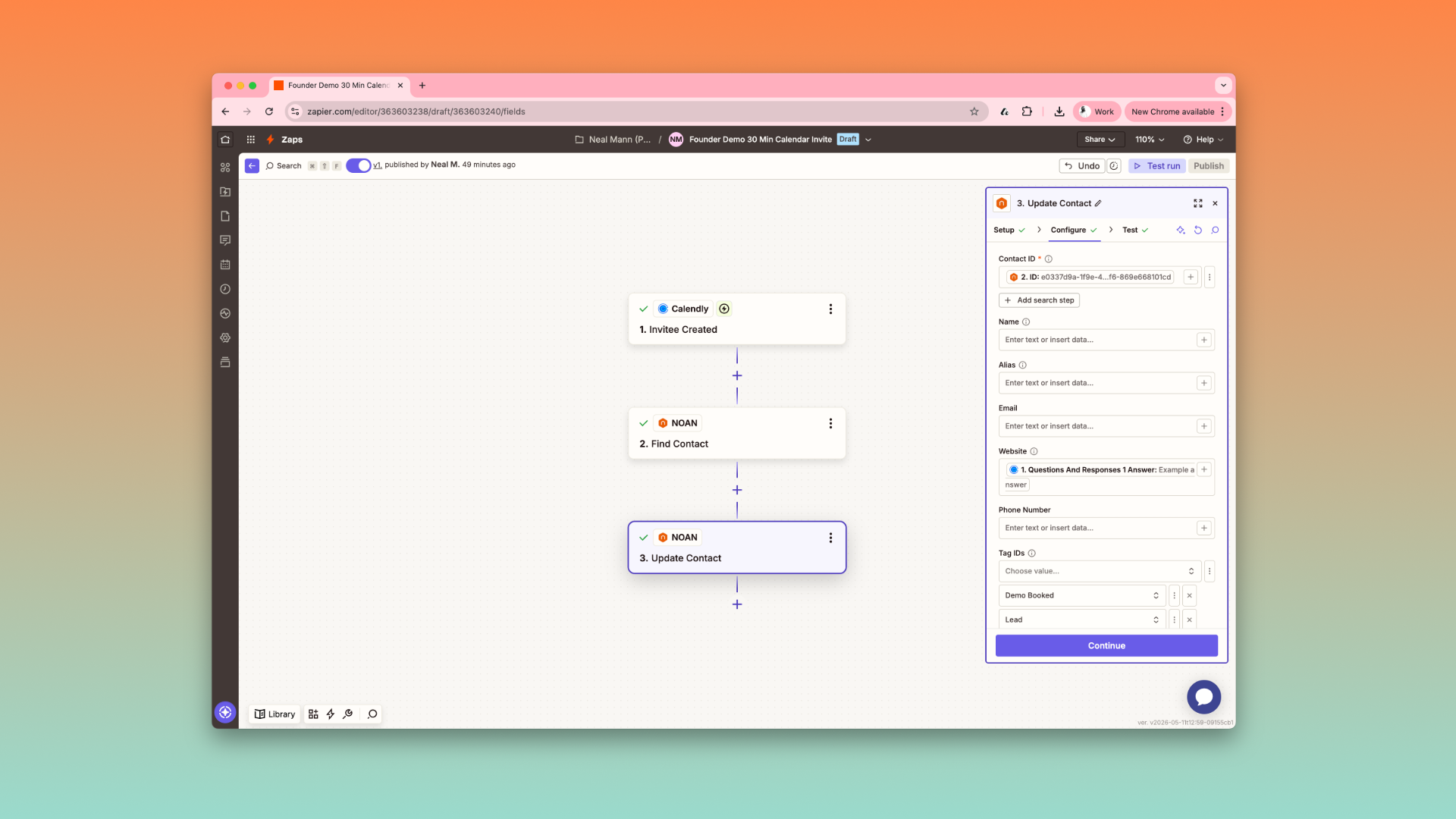
**Zapier Integration:**Set up a Zap so that when someone books a call, NOAN checks if the contact exists. If not, it creates a new contact.
-
**Contact Enrichment:**Use the “Update Contact” Zap to add details (like their website) and assign tags (e.g., demo booked, lead).Tip: Leaving fields blank in the Zap won’t overwrite existing contact info.
2. Organize Leads with Saved Views
-
**Saved Views:**In NOAN’s Network, create custom saved views for different lead stages (e.g., hot leads, demo booked, subscribers).
-
**Visibility:**Views can be private (just for you) or shared with your team.
-
**Instant Pipeline:**As new leads come in, they’re automatically tagged and appear in the right view—no manual sorting.
3. Use Tags for Stage-Based Pipeline Management
-
**Stage Tags:**Tag contacts by their pipeline stage: lead, demo booked, demo done, subscriber, etc.
-
**Automation:**If someone subscribes via Stripe, use another Zap to auto-tag them as subscriber.
-
**Context for AI:**Tags give the NOAN Assistant context, so it can prioritize and suggest next actions.
4. Leverage the Assistant for Lead Prioritization
-
**Daily Lead Review:**Ask the Assistant: “What leads should I reach out to?”It will surface high-priority leads (e.g., those tagged as hot lead or demo done).
-
**Follow-Up Tasks:**Instruct the Assistant to create follow-up tasks for these leads and tag them as sales.
-
**Assignment:**Assign yourself (or teammates) to these tasks for accountability.
5. Manage Tasks with Tag-Based Views
-
**Task Manager:**Use saved views in the Task Manager to filter by tags (e.g., sales, marketing).
-
**Department vs. Stage:**Use department-level tags for tasks (sales, marketing) and stage-based tags for contacts in Network.
-
**Contact Linking:**Connect tasks directly to contacts for seamless context (soon to be automated by the Assistant).
6. Visualize and Action Your Pipeline
-
**Network + Tasks:**In your Leads view, hover over the task icon to see all tasks linked to a lead—know instantly who needs follow-up.
-
**Automation Roadmap:**More automations are coming, but even now, you can manage your pipeline, tasks, and follow-ups in one place.
7. Supercharge Outreach with Gmail Integration
-
**Email Follow-Up:**If you’ve connected Gmail, ask the Assistant to send follow-up emails to leads directly from your tasks.
-
**Unified Workflow:**Manage sales, marketing, and customer success—all from NOAN, switching between views as needed.
NOAN isn’t just a CRM—it’s your AI-native command center for sales. Automate lead capture, tag and track every stage, and let the Assistant handle prioritization and follow-up. With saved views, task linking, and integrations, your pipeline management becomes seamless and scalable.
Ready to ditch your old CRM? Try this workflow and unlock a smarter, AI-powered sales process with NOAN.
.png)
.png)
.png)