How to Create Newsletters in NOAN: A Practical Guide
Newsletters are a powerful way to engage your audience, but building them from scratch can be time-consuming. NOAN’s AI-native platform streamlines the process—combining templates, smart content sourcing, and automation to help you craft compelling newsletters in minutes. Here’s how to do it:
1. Set Your Template with Newsletter Format Blocks
**Why it matters:**A consistent, on-brand template ensures every newsletter looks professional and is easy to replicate.
How to do it:
-
Go to your NOAN workspace and open the Newsletter Format block.
-
Customize the template to match your brand—add sections for intros, feature highlights, pro tips, and calls to action.
-
Save this block as your go-to structure for every edition.
-
Need help with a template? Just ask the assistant for a template it can reference.
2. Use Assistant Search to Pull in External Links & Inspiration
**Why it matters:**Great newsletters often include curated content, industry news, or relevant articles. NOAN’s assistant can search the web and bring in fresh, credible links—no tab-hopping required.
How to do it:
-
In the assistant chat, say:“Search for the latest AI marketing trends to include in this month’s newsletter.”
-
Or,“Find top articles on productivity for small business owners.”
-
The assistant will return summaries and links you can drop directly into your newsletter draft.
3. Send Newsletter Ideas into Notes for Easy Access
**Why it matters:**Capturing ideas as they come keeps your content pipeline full and your newsletters fresh.
How to do it:
-
Whenever inspiration strikes, tell the assistant:“Add this idea to my Newsletter Notes: [Your idea].”
-
Or,“Send these three article links to my Newsletter Notes.”
-
All your ideas and resources are now stored in Notes, ready to be pulled into your next edition.
4. Create a ‘Newsletter Ideas’ Tag for Smarter Organization
**Why it matters:**Tags make it easy to organize, retrieve, and automate content for your newsletters.
How to do it:
-
In the assistant chat, say:“Create a tag called ‘Newsletter Ideas’ for notes.”
-
When saving a note, add:“Tag this note as ‘Newsletter Ideas’.”
-
Now, you can quickly filter and pull all your best ideas into your newsletter draft.
**Pro Tip:**You can ask the assistant to “List all notes tagged ‘Newsletter Ideas’” whenever you’re ready to assemble your next edition.
5. Set a ‘Write Newsletter’ Memory for Automated Content Assembly
**Why it matters:**Memories in NOAN let you automate multi-step workflows. By setting a ‘Write Newsletter’ memory, you can instruct the assistant to always reference your template and pull in the right content—saving you time and mental energy.
How to do it:
-
Instruct the assistant:“Add a memory that when I say ‘Write Newsletter,’use the Newsletter Format block, pull in the latest notes tagged ‘Newsletter Ideas,’ and include any relevant external links from this URL... (for example your blog).”
-
Next time, just say:“Write Newsletter.”
-
The assistant will assemble a draft using your template, your saved ideas, and the latest curated content.
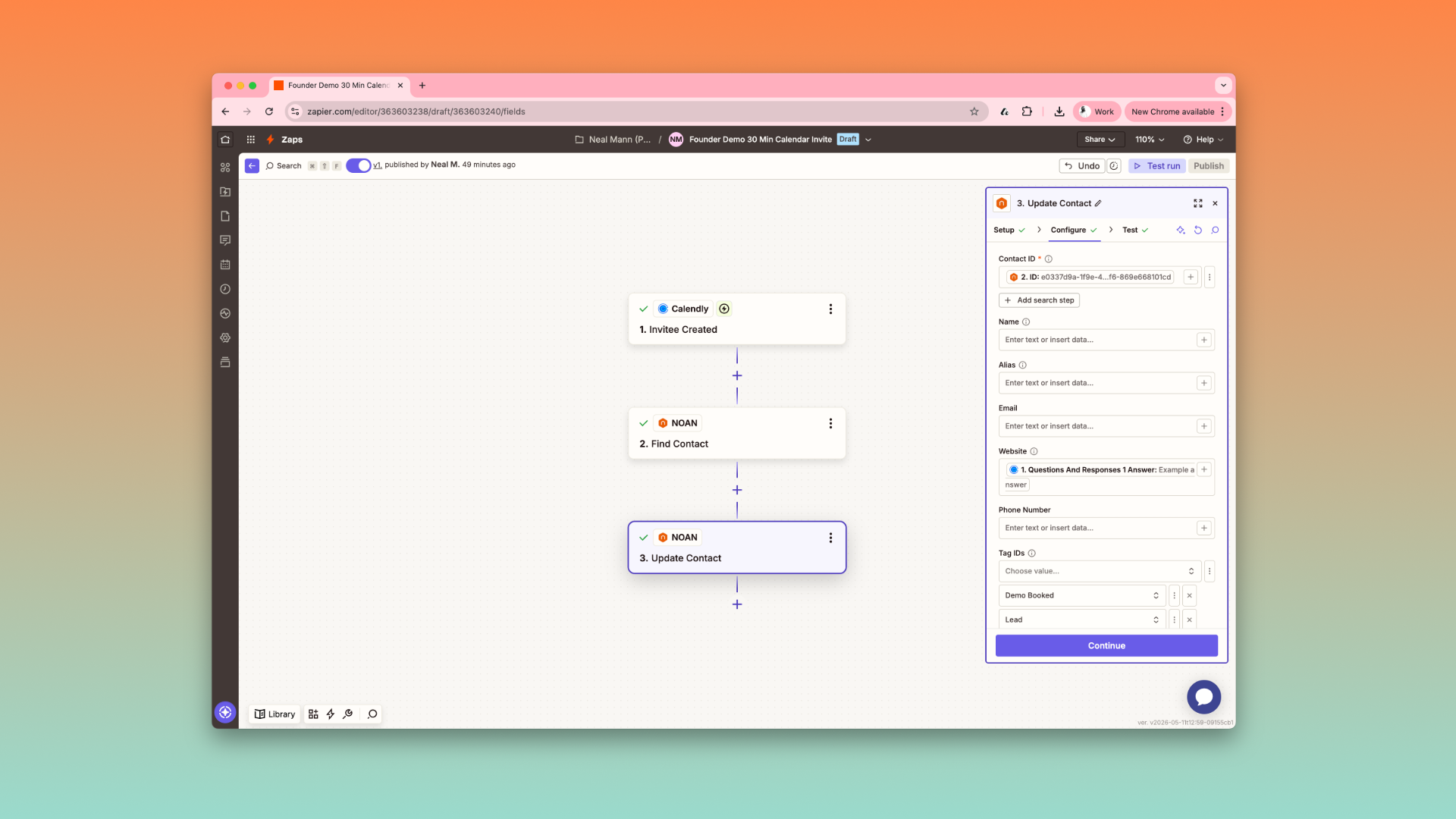
6. Trigger Create to Send Your Newsletter to Mailchimp (or Any Email Sender) with Tags & Zapier
**Why it matters:**NOAN’s Create Mode and tagging system let you automate newsletter distribution—no manual exporting or copy-pasting.
How to do it:
-
When your newsletter draft is ready in Create Mode, tag it (e.g., “Monthly Newsletter”).
-
Set up a Zapier workflow: Trigger: “New asset in NOAN with tag ‘Monthly Newsletter’.”
-
Action: “Create campaign in Mailchimp” (or your chosen email platform), using the content from your NOAN asset.
**Pro Tip:**You can create different tags for different platforms (e.g., “Send to Substack,” “Send to Campaign Monitor”) and set up corresponding Zapier flows for each.
Final Thoughts
NOAN transforms newsletter creation from a manual, repetitive task into a streamlined, AI-powered workflow. By setting your template, leveraging smart search, capturing and tagging ideas, automating with Memories, and integrating with your email sender, you’ll deliver high-quality newsletters—every time, with less effort.
**Ready to level up your newsletters?**Set your template, create your tags, and let NOAN’s assistant and automations do the heavy lifting. Your next great edition is just a command away.
.png)
.png)
.png)