NOAN Network isn’t just another CRM—it’s an AI-native, natural language-driven contact management system that redefines how you organize, search, and leverage your business relationships. Here’s your step-by-step guide to getting the most out of NOAN Network, ensuring you never miss a detail or opportunity.
1. Adding Contacts—Just Ask
-
**Natural Language Input:**Simply tell the assistant, “Add a contact to my network,” and provide any details you have: name, email, company, role, website, or a memo (extra info about the person).
-
**Private Contacts:**Want a contact to be visible only to you? Ask the assistant to set it as private.
-
**Batch Import:**For bulk additions, use the “Import contacts from CSV” button. Your CSV should include columns like name (required), alias, email, phone, website, company role, and memo.
-
**Assistant Batching: **If you’ve got a short list—say 20 or 30 investors with names and emails—you can simply paste the whole list into the assistant and ask it to create contacts for each one. The assistant will batch process them instantly, saving you the hassle of adding each contact individually. This conversational batch add is ideal for smaller groups where you want speed and flexibility. For larger lists, however, it’s more efficient to use the CSV import feature, which is designed to handle high volumes and ensures all your data fields are mapped correctly.
2. Viewing & Searching Your Network
-
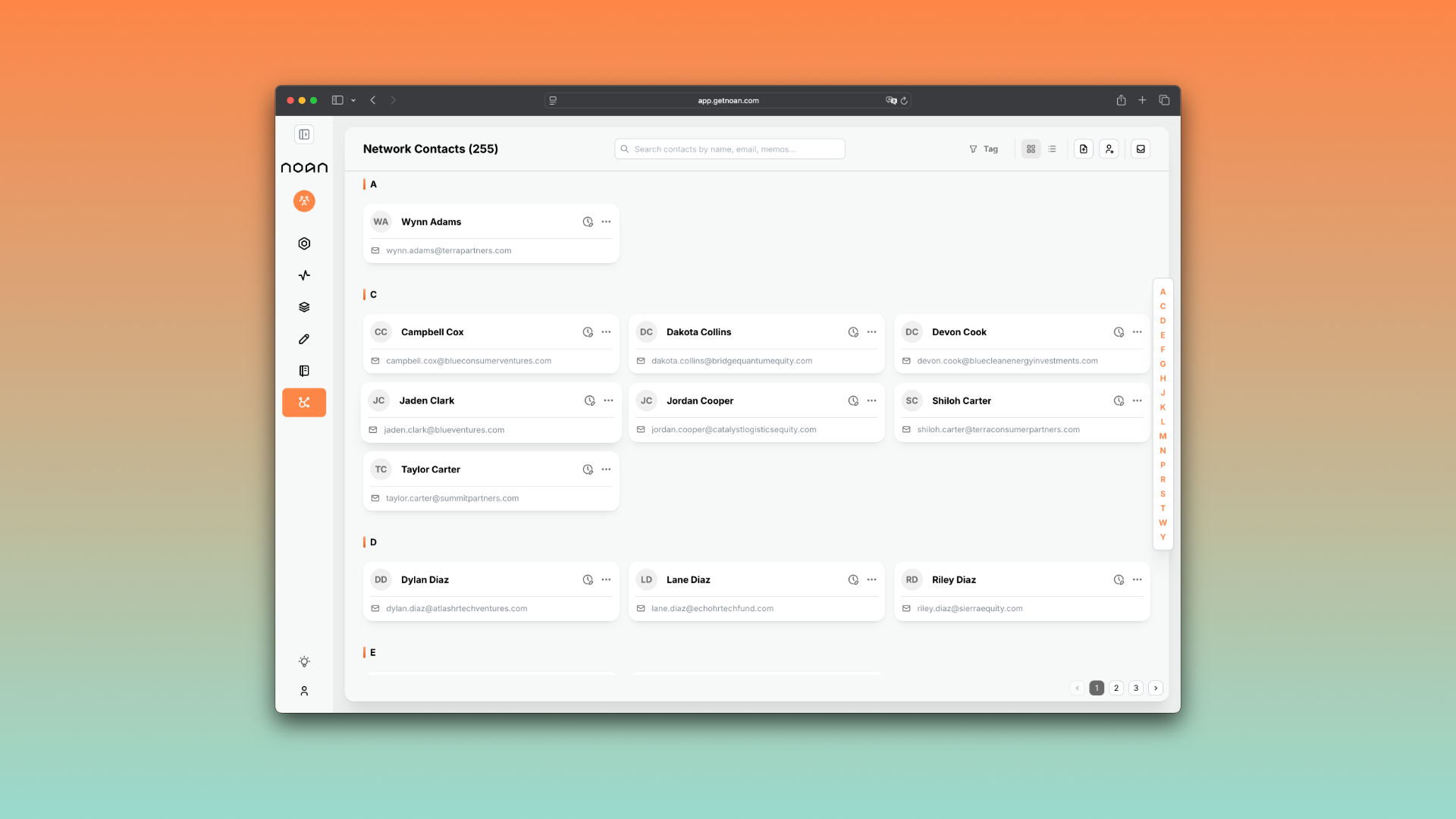
**Network Overview:**All contacts are accessible in the Network tab, sortable alphabetically or by the date added.
-
**Contextual Search:**Search by name, memo content, or any profile field. The assistant can find contacts based on any detail you remember.
-
**Tag-Based Search:**Filter contacts by tags—either add them manually in a contact’s profile or ask the assistant to create and assign tags for you.
3. Editing & Enriching Contact Profiles
-
**Manual Edits:**In each contact’s profile, you can update any field, add or delete memos, lock the contact (make it private), or manage tags.
-
**Assistant-Driven Updates:**Prefer hands-free? Just instruct the assistant: “Change the email for [Contact],” or “Add a memo to [Contact].” Use clear, NOAN-reflective language for best results.
4. Automating Meeting Notes & Integrations
-
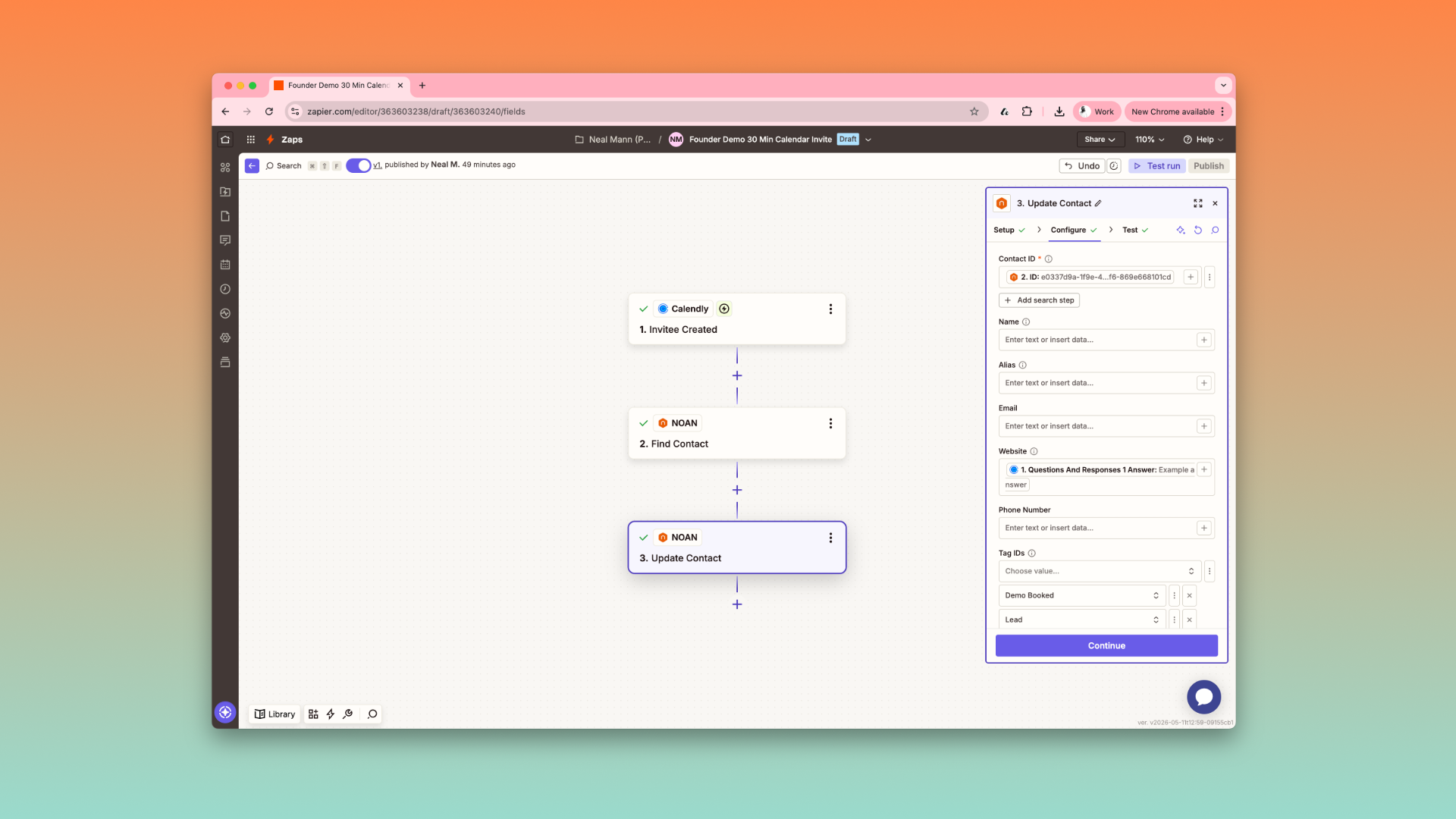
**Zapier Integration:**Connect tools like Granola or other meeting note-takers via Zapier. Meeting notes can be sent directly into the relevant contact’s profile.
-
**Powerful Search:**The assistant can analyze all memos and meeting notes across your network. For example, ask, “What are the top pain points from my sales calls?” and get actionable insights instantly.
5. Email Integration & Communication
-
**Gmail Connection:**If you’ve connected Gmail, you can view all recent emails from a contact directly in their profile—these are private to you.
-
**AI Email Drafting:**Ask the assistant to draft and send emails to any contact. It will use your business context and the contact’s details to create accurate, relevant messages in seconds.
6. Activity & Lead Tracking
-
**Network Widget:**The Activity page’s Network widget shows your latest added contacts at a glance.
-
**Lead Source Tagging:**If you’re importing leads from sources like Typeform via Zapier, set up tags to track where each contact originated.
7. Best Practices for Natural Language Control
-
**Be Specific:**When instructing the assistant, specify exactly what you want to update or search (e.g., “Find my last email with Tamara at smartcontainer.co.uk”).
-
**Reflect Product Language:**Use terms like “add memo,” “change email,” or “make private” to ensure the assistant understands your intent.
8. Why NOAN Network is Different
-
**No Property Mapping:**Forget manual field matching—NOAN’s assistant handles all the data structuring for you.
-
**Contextual Intelligence:**The assistant connects the dots between your business facts and your contacts, enabling smarter search, analysis, and communication.
-
**Instant Answers & Actions:**Whether you need a summary of all your sales calls, a new tag for a contact, or a draft email, NOAN delivers in seconds.
9. Advanced Tips
-
**Batch Actions:**Use CSV import for large updates, and let the assistant handle tagging or memo additions in bulk.
-
**Integrate Meeting Notes:**Automate note-taking and ensure every interaction is logged and searchable.
-
**Leverage AI Analysis:**Regularly ask the assistant to surface trends, pain points, or opportunities from your contact network.
If you’ve got a short list—say 20 or 30 investors with names and emails—you can simply paste the whole list into the assistant and ask it to create contacts for each one. The assistant will batch process them instantly, saving you the hassle of adding each contact individually. This conversational batch add is ideal for smaller groups where you want speed and flexibility. For larger lists, however, it’s more efficient to use the CSV import feature, which is designed to handle high volumes and ensures all your data fields are mapped correctly.
10. Troubleshooting & Optimization
-
**Sync Issues:**If a recent email or contact isn’t showing up, check your integration status and ensure your data sources (like Gmail or Zapier) are connected and synced.
-
**Clear Instructions:**If the assistant doesn’t return what you expect, rephrase your request with more detail or specify the data type (e.g., “Show memos for [Contact]”).
Summary Table
**NOAN Network turns your CRM into a living, breathing business intelligence engine—powered by your words, not your clicks.**Embrace natural language, automate the admin, and let your network work for you.
.png)
.png)
.png)