Tagging in NOAN isn’t just a feature—it’s your secret weapon for clarity, speed, and automation. Here’s how to get the most out of tags, avoid common pitfalls, and build a system that scales with your business.
1. Understand the Power of Tags
Tags in NOAN help you:
-
Organize contacts, content, and notes for instant recall.
-
Automate workflows—the assistant auto-tags as needed.
-
Filter, search, and segment across your workspace.
A well-structured tagging system means less time searching, more time executing.
2. Create Tags with Intention
You can add tags directly with the assistant or manually in settings. When creating a tag, always:
-
Give it a clear, descriptive title (e.g., “Seed Stage Investor”).
-
Assign a distinct color—visual cues help you scan and sort quickly.
-
Write a specific description so the assistant knows exactly when to use it (e.g., “Apply to any contact who invests in seed stage companies”).
**Pro Tip:**Descriptions are vital. The assistant relies on them to auto-tag correctly. Vague tags = messy data.
3. Use Tag Categories Wisely
Tags can be set to apply to:
-
Contacts (e.g., “Beta User,” “Hot Lead”)
-
Content (e.g., “Facebook Post,” “Contract”)
-
Notes (e.g., “Content Idea,” “Meeting Recap”)
While some tags may cross over (like “Content Idea” for both notes and content), most work best when specific to one area. This keeps your workspace clean and your filters powerful.
4. Color-Code for Clarity
Assign unique colors to key tags—especially for stages or types (e.g., pink for “Seed Stage Investor,” green for “Converted Lead”). This makes it easy to spot what matters at a glance, especially in large networks or content libraries.
5. Build for Stages, Phases, and Types
-
Stages: Track progress (e.g., “New Lead,” “Qualified,” “Converted”).
-
Phases: Mark where something sits in a process (e.g., “Draft,” “Published”).
-
Types: Identify the nature of the item (e.g., “Contract,” “Newsletter,” “Super User”).
This structure lets you filter, sort, and build custom pipelines—like a deal flow in your network, or a content calendar in notes.
6. Avoid Tag Overkill
You can create unlimited tags, but more isn’t always better. Too many tags = clutter. Focus on what’s actionable and relevant to your business. Review and prune tags regularly.
7. Automate and Integrate
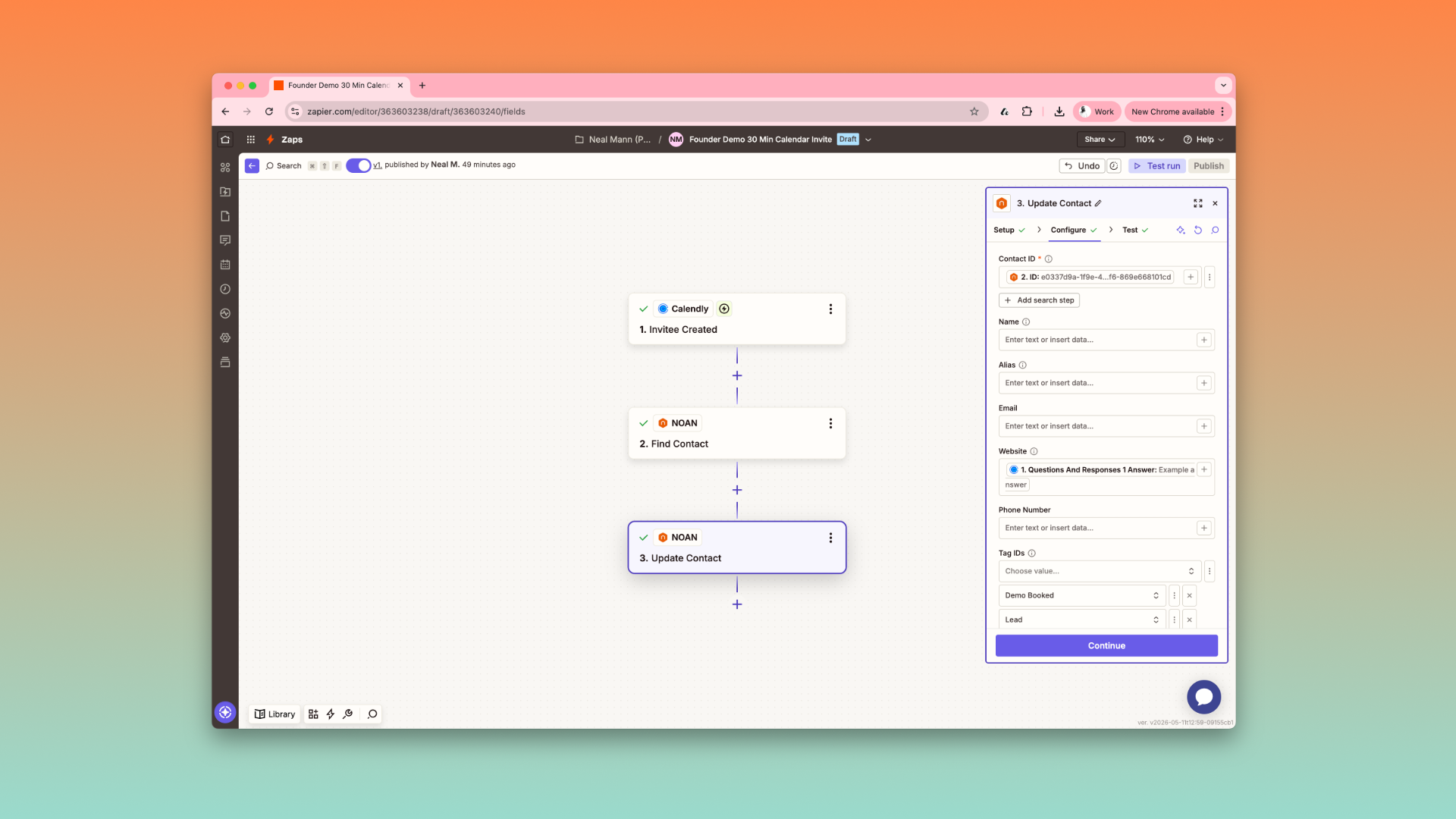
NOAN’s assistant auto-tags based on your descriptions, and you can connect tags to automations (e.g., via Zapier). For example, tag a document as “Contract” and have it sent for signature automatically.
8. Keep Descriptions Up to Date
If you change how you use a tag, update its description. The assistant will follow your lead, but only if you’re clear about when and how to use each tag.
9. Review and Refine
Periodically audit your tags:
-
Are they still relevant?
-
Are descriptions clear?
-
Are colors distinct?
-
Are you using tags to their full potential in automations and filters?
10. Example Tagging Scenarios
-
**Sales Pipeline:**Tags like “New Lead,” “Demo Booked,” “Negotiation,” “Closed Won” let you filter and follow up with precision.
-
**Content Production:**Tags like “Blog Idea,” “Draft,” “Published,” “Newsletter” help you manage your editorial calendar.
-
**User Segmentation:**Tags like “Beta User,” “Super User,” “Churn Risk” let you target communications and support.
Final Thoughts
A thoughtful tagging system in NOAN is the backbone of a streamlined, scalable business. Start simple, be intentional, and let the assistant do the heavy lifting—your future self will thank you.
Ready to level up your NOAN workspace? Start tagging smarter today.
.png)
.png)
.png)