.png)
If you want to organize your business, automate workflows, and unlock new productivity superpowers, this is your how-to guide to using tags.
How it works
Tags are available across the entire NOAN platform—contacts, notes, and content assets. You can create, assign, edit, and manage tags using natural language with the NOAN Assistant, or manually in your project settings. This means you can finally organize everything, your way.
1. Creating Tags with the Assistant
You can ask the Assistant to create a tag for you—just type what you want.Example:
“Create a tag called ‘Beta Testers’.”
The Assistant instantly creates the tag, ready to use across your workspace.
2. Assigning & Managing Tags
-
Assign tags to contacts, notes, or content assets by simply asking the Assistant.
-
Update tags (change name, color, or description) with a quick command.
-
Manually manage tags in your project’s tag settings for full control.
3. Categories, Content Types & Customization
-
Categories: Group tags together for easy navigation (e.g., “Leads,” “Customers,” “Internal”).
-
Content Types: Specify if a tag applies to contacts, notes, or assets—or all three.Example: A “Lead” tag might only apply to contacts, while “Draft” could be for notes and assets.
-
Colors: Make tags visually distinct (yes, you can even ask for “hot pink”).
-
Descriptions: Add instructions so the Assistant knows exactly when to use each tag.
4. Editing & Searching Tags
-
Edit tags anytime—change the name, color, category, or description as your needs evolve.
-
Search and filter by category or content type to quickly find and manage your tags.
5. Conversational Tag Management
You can do almost everything just by talking to the Assistant:
-
“Assign the ‘Beta Testers’ tag to all new contacts.”
-
“Change the color of ‘Leads’ to blue.”
-
“Show me all tags for content assets.”
NOAN’s AI understands context and will apply the right tag in the right place.
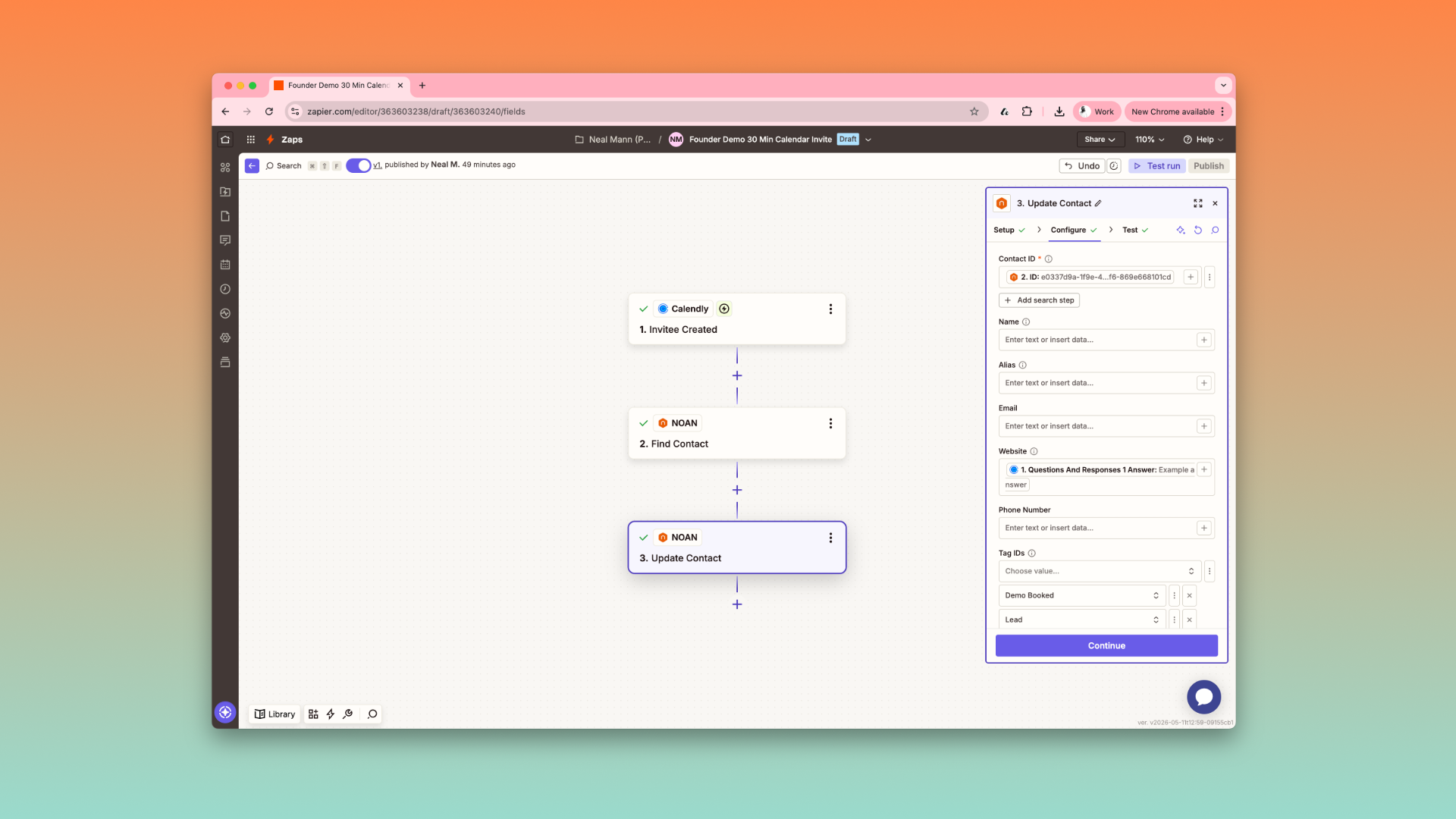
6. Zapier Integration: Tag-Powered Automation
Tags are now fully integrated with Zapier.
-
Trigger Zaps when a tag is assigned (e.g., auto-segment leads, trigger onboarding flows).
-
Auto-tag new contacts or assets based on where they come from (e.g., form submissions, imports).
7. Best Practices & Pro Tips
-
Start simple: Create a few core tags for your main workflows.
-
Use categories: Keep things organized as your tag list grows.
-
Leverage colors: Make important tags stand out.
-
Automate: Use tags with Zapier to save time and reduce manual work.
-
Iterate: Edit and refine your tags as your business evolves.
Get Started
Jump in, experiment, and make tags your new secret weapon for business organization and automation in NOAN.Questions? Just ask the Assistant.
Tag, you’re it.
.png)
.png)
.png)